

Studio templates
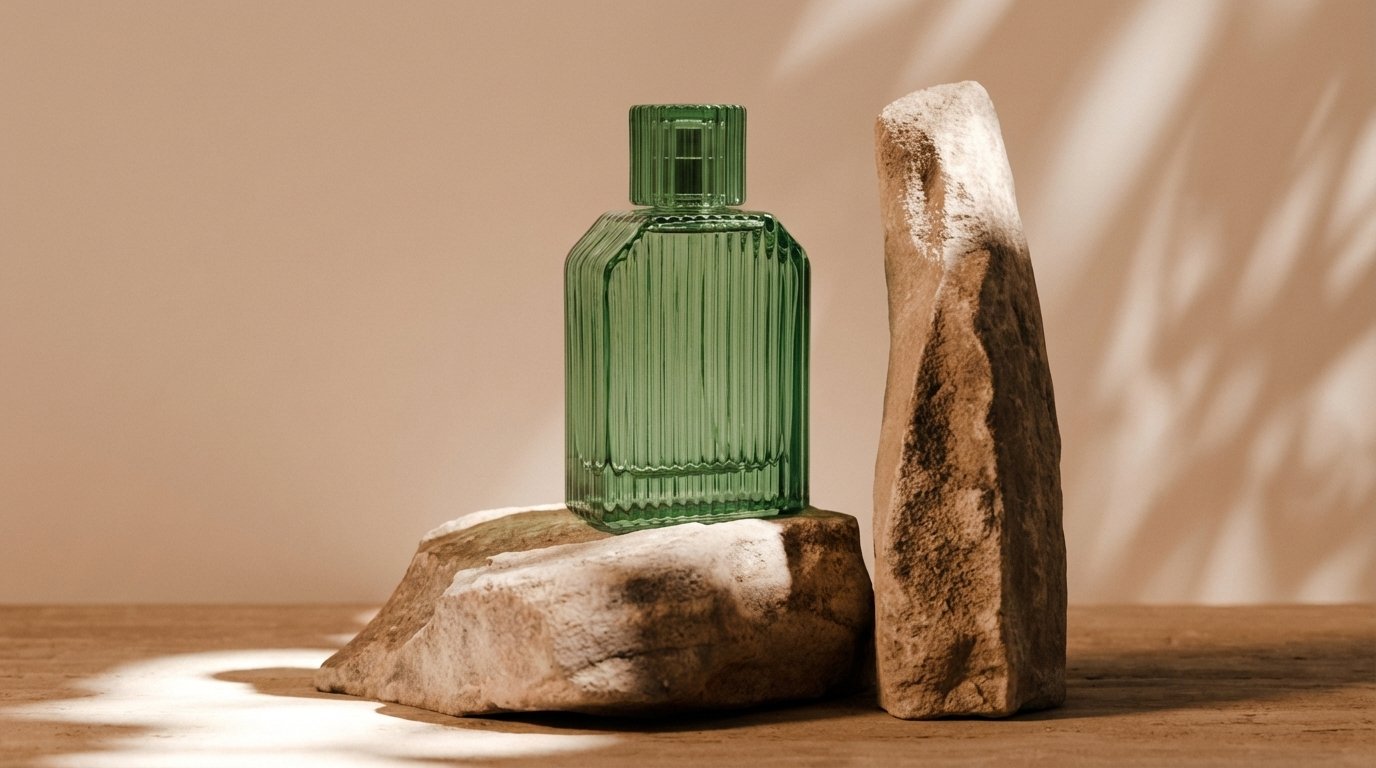
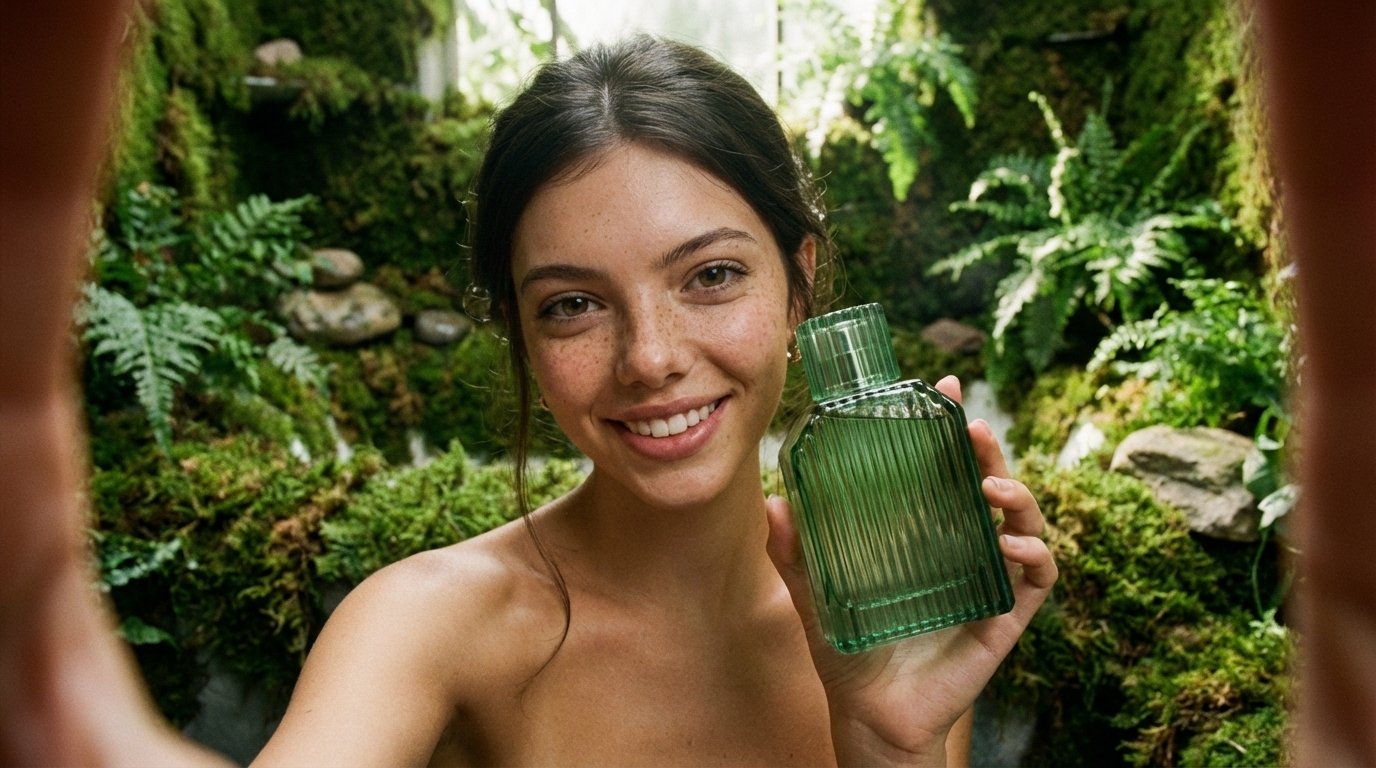
Three templates are available on all plans. Add them from the floating dock inside a project — not from the Workflows tab.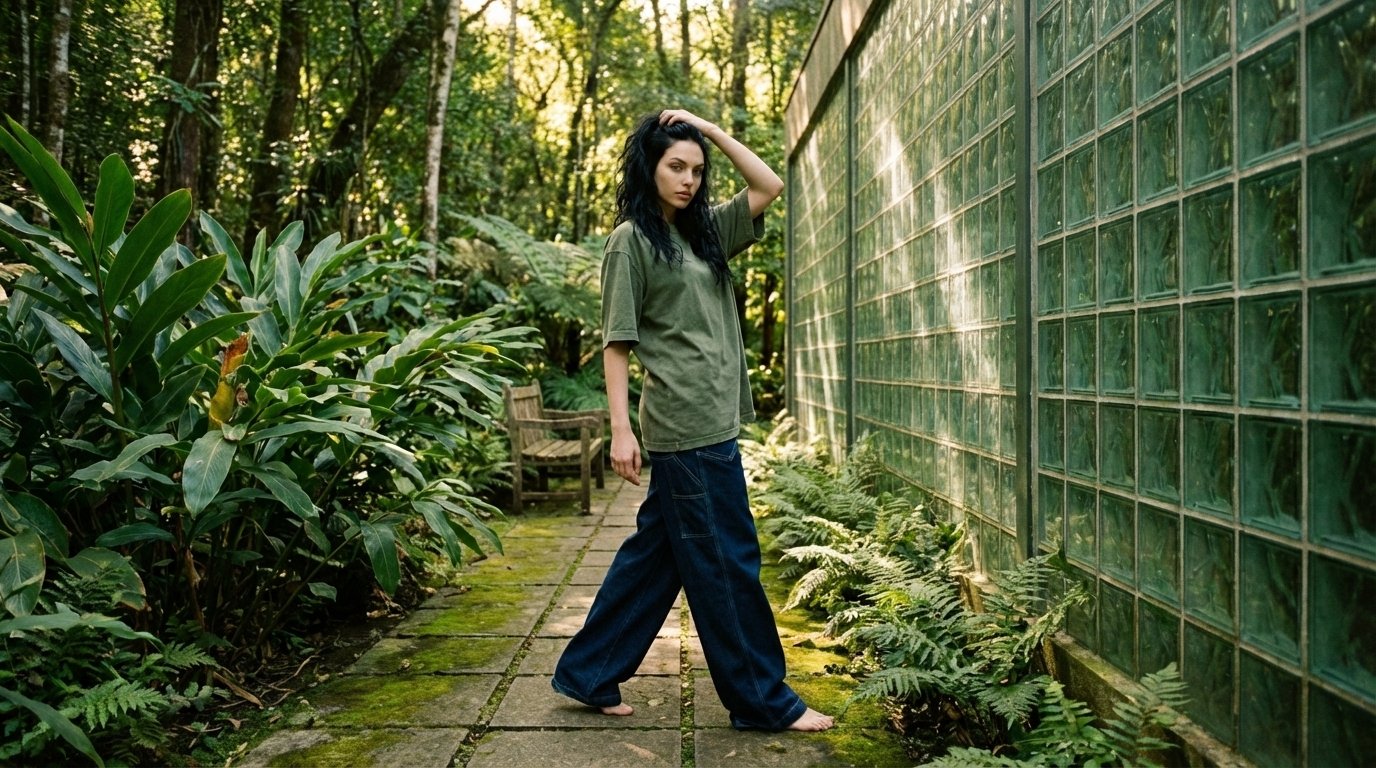
1
Open a project
Create or open a project so the studio canvas is active.
2
Add a template from the dock
Open the floating dock and choose Fashion Shooting, Product Still Life, or UGC Content.
3
Replace assets
Swap placeholder products, characters, styles, and environments for your own.
4
Generate
Click Generate on the Image Generator (or other generator in the template).
The public gallery
The public gallery shows curated workflows you can clone. Browse it in the Workflows tab inside the app, or on the marketing site at https://www.rainfrog.ai/workflows. Gallery entries change over time. Expect a mix of still lifes, beauty, streetwear, and lifestyle looks — use the previews to find a tone that matches your brief.Cloning a gallery workflow
Click Clone on any gallery workflow you want. It opens as a new project with the node graph structure preserved so you can swap assets and regenerate.Cloning does not change the original gallery entry. Your copy is yours to edit.
Customizing after cloning
1
Open the cloned project
Find it under Projects and open the canvas.
2
Identify each asset node
Click Product, Character, Style, and Environment nodes to see what to replace.
3
Replace with your assets
Select items from your libraries (or built-ins). Prefer keeping generator connections intact when you only need asset swaps.
4
Generate
Click Generate. Rainfrog runs the graph with your assets in the cloned structure.