> ## Documentation Index
> Fetch the complete documentation index at: https://docs.rainfrog.ai/llms.txt
> Use this file to discover all available pages before exploring further.
# Generate Short-Form Campaign Videos in Rainfrog Studio
> Use the Video Generator node to produce short-form campaign clips — pick a model, wire the inputs it needs, and generate motion from your workflow.
Rainfrog's **Video Generator** produces short-form campaign clips from the same project you use for stills. Add the node, choose a video model, connect the inputs that model expects, and generate. If you already have a strong image workflow, you are most of the way to a matching motion piece.
 ## How video generation works
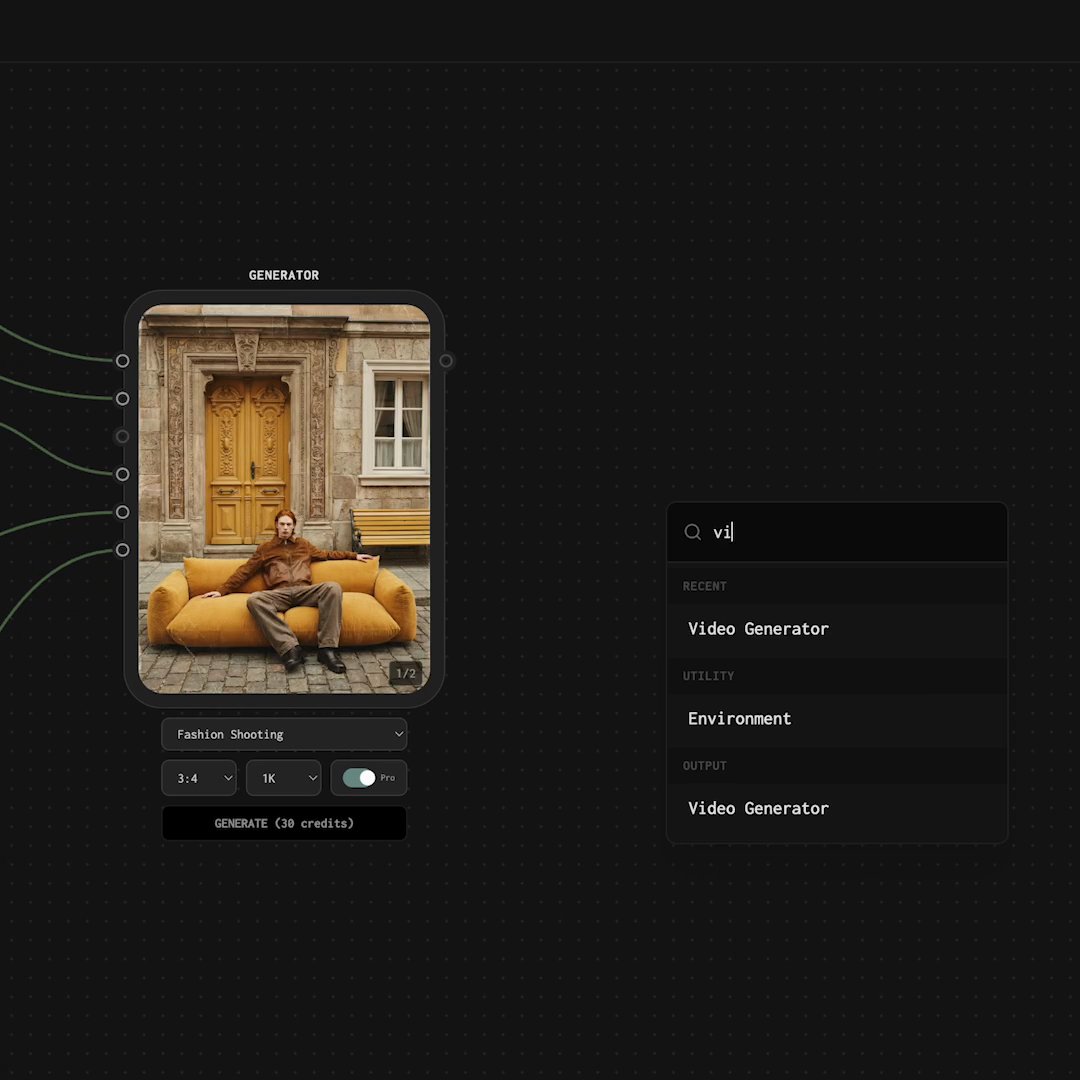
Video uses a dedicated **Video Generator** node — it is not a mode on the Image Generator. Select a model on the node. The input handles update to match that model. Connect images, frames, text, or video references as shown, then click **Generate**. Credit cost and duration options appear on the node before you run.
Video generation is available on paid plans and typically costs more credits than a still.
## Video models
| Model | Typical inputs |
| ----------------------- | ----------------------------------------------------------------- |
| **Kling 2.6** | **Image**, optional **End image** |
| **Kling 3.0** (default) | **First Frame**, optional **Last Frame**, optional **References** |
| **Seedance 2.0** | **Text**, **Image assets**, optional **Video assets** |
Use Image nodes, Video nodes, Full Body outputs, or Image Generator results as sources for those handles when the connection types match.
## Adding a Video Generator
Work in a project that already has strong still assets, or start fresh.
From the floating dock, add a **Video Generator** node.
Pick Kling 2.6, Kling 3.0, or Seedance 2.0. Confirm the input handles that appear.
Wire the frames, references, text, or media the model asks for. Keep subject and style consistent with your still campaign when you want matching motion.
Check duration and credit cost on the node, then click **Generate**. Keep working on the canvas while the job runs in the background.
## Use cases
* **Reels, TikTok, and Stories** — short motion that matches your brand look
* **Product teasers** — a still hero frame animated into a short clip
* **Lookbook motion** — subtle movement on editorial fashion frames
* **Paid social** — variants for ads without rebuilding the whole campaign
## Tips for better video output
* Start from a still you already like, then animate that frame
* Prefer environments with clear spatial structure (studio, room, defined outdoor) over highly abstract scenes
* Use a character pose that reads clearly as a starting frame
* Keep product and character references consistent with your image workflow
Generate a strong Image Generator result first, then connect that image into the Video Generator as the starting frame for Kling models.
## How video generation works
Video uses a dedicated **Video Generator** node — it is not a mode on the Image Generator. Select a model on the node. The input handles update to match that model. Connect images, frames, text, or video references as shown, then click **Generate**. Credit cost and duration options appear on the node before you run.
Video generation is available on paid plans and typically costs more credits than a still.
## Video models
| Model | Typical inputs |
| ----------------------- | ----------------------------------------------------------------- |
| **Kling 2.6** | **Image**, optional **End image** |
| **Kling 3.0** (default) | **First Frame**, optional **Last Frame**, optional **References** |
| **Seedance 2.0** | **Text**, **Image assets**, optional **Video assets** |
Use Image nodes, Video nodes, Full Body outputs, or Image Generator results as sources for those handles when the connection types match.
## Adding a Video Generator
Work in a project that already has strong still assets, or start fresh.
From the floating dock, add a **Video Generator** node.
Pick Kling 2.6, Kling 3.0, or Seedance 2.0. Confirm the input handles that appear.
Wire the frames, references, text, or media the model asks for. Keep subject and style consistent with your still campaign when you want matching motion.
Check duration and credit cost on the node, then click **Generate**. Keep working on the canvas while the job runs in the background.
## Use cases
* **Reels, TikTok, and Stories** — short motion that matches your brand look
* **Product teasers** — a still hero frame animated into a short clip
* **Lookbook motion** — subtle movement on editorial fashion frames
* **Paid social** — variants for ads without rebuilding the whole campaign
## Tips for better video output
* Start from a still you already like, then animate that frame
* Prefer environments with clear spatial structure (studio, room, defined outdoor) over highly abstract scenes
* Use a character pose that reads clearly as a starting frame
* Keep product and character references consistent with your image workflow
Generate a strong Image Generator result first, then connect that image into the Video Generator as the starting frame for Kling models.